If you have ever received a PDF with pages in the wrong order, a scan where every other page came out sideways, or a report with a dozen irrelevant appendix pages you want to remove before sharing — you know the frustration of not having a quick way to fix it. Most people default to recreating the document from scratch or suffering through the disorganized file.
There is a better way. RedaktPDF's page organizer handles all three operations — reorder, delete, rotate — directly in the browser. No software to install, no account required.
When You Need PDF Page Management
Page management problems are more common than you might expect, particularly with:
Scanned documents. When scanning a physical document, pages can come out in the wrong order if you load them into the scanner incorrectly, or sideways if the original was portrait but scanned as landscape. Both are one-step fixes in a page organizer.
Merged files. If you combined several PDFs and the order came out wrong, reordering pages is the fix — assuming you want everything in one file rather than separate files.
Presentations and reports. Before sharing a deck or report, removing draft pages, placeholder slides, or internal-only appendix content is routine. Rather than regenerating the file from source, deleting those pages from the PDF is faster.
Extracted or exported documents. PDFs generated by web apps or exports sometimes produce pages in unexpected sequences. Page reordering restores the intended order.
Legal and compliance documents. Contracts and compliance packets often require pages in a specific order. If a document arrives out of sequence, rearranging before review or signing saves confusion.
How to Rearrange PDF Pages
Reordering pages in a PDF is a drag-and-drop operation in RedaktPDF.
Step 1: Upload Your PDF
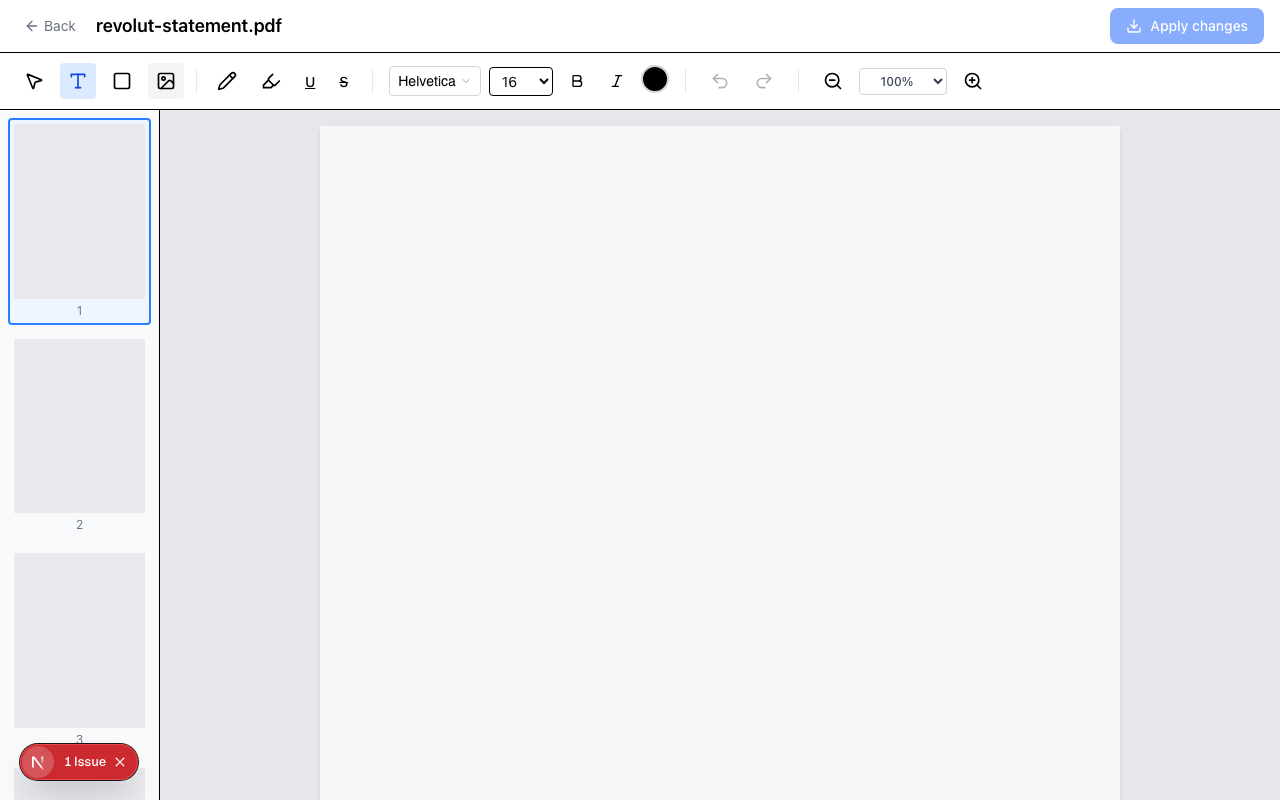
Drag your file onto the RedaktPDF upload area or click to browse. The editor loads your document and shows all pages in the main view.
Step 2: Open the Page Sidebar
Click the Pages panel on the left side of the editor. This opens a thumbnail view of all pages in your document, displayed in their current order.
Step 3: Drag Pages to New Positions
Click on any page thumbnail and drag it to its new position. The other thumbnails shift to make room as you drag. Release to drop the page in place.
For a multi-page reorder — for example, swapping a block of 5 pages from the end to the beginning — repeat the process for each page, or rearrange in the sequence that gets you to the final order most efficiently.
Step 4: Export
When the page order looks correct, click Download. The exported PDF reflects the new page order. Every edit you made in the same session is also included in the export.
A note on page order verification: Before sharing an important reordered document, quickly flip through the exported PDF to confirm the sequence is correct. Drag-and-drop reordering is fast but it is easy to mis-drop a page if you are working quickly.
How to Delete PDF Pages
Removing unwanted pages from a PDF is a one-click operation for each page you want to remove.
Step 1: Open the Page Sidebar
With your document loaded, open the Pages panel. You will see thumbnails of all pages.
Step 2: Hover Over the Page to Delete
Hover your cursor over the thumbnail of the page you want to remove. A delete button (X) appears on the thumbnail.
Step 3: Click Delete
Click the delete button. The page is immediately removed from the page list. The remaining pages close the gap.
Step 4: Verify and Export
Review the remaining pages to confirm the correct ones were removed. Click Download to export the modified PDF.
Deleting multiple pages: Repeat the hover-and-delete process for each page. If you need to remove a large number of pages (say, 15 out of 20), it may be faster to think about which pages to keep rather than which to delete — but the current tool operates on a page-by-page deletion basis.
Note on undo: If you accidentally delete the wrong page, use the undo function (Ctrl+Z or Cmd+Z) to restore it before exporting.
How to Rotate PDF Pages
Rotation fixes are among the most common PDF operations after scanning. A sideways page is visually jarring and makes the document harder to read.
Step 1: Open the Page Sidebar
Open the Pages panel to see all page thumbnails.
Step 2: Find the Sideways Page
Identify the page or pages that need rotation. Sideways pages are obvious in the thumbnail view.
Step 3: Rotate the Page
Click the rotate button on the page thumbnail. Each click rotates the page 90 degrees clockwise. For a page that needs to go from landscape (sideways) to portrait, click once. For a page that came out upside-down, click twice.
Step 4: Verify and Export
The thumbnail updates in real time to reflect the rotation. Check that the orientation looks correct, then export.
Rotating all pages vs. selected pages. If an entire document scanned in the wrong orientation, you will need to rotate each page individually. For a 10-page document this takes about 30 seconds. For longer documents, it is repetitive but there is no per-session limit.
Practical Scenarios
Scenario 1: Fixing a backwards scan. You scanned a 6-page document but put the pages in the feeder backwards. The PDF has pages 6, 5, 4, 3, 2, 1. Open the page sidebar and drag page 6 to position 1, page 5 to position 2, and so on until the order is correct.
Alternatively — and often faster — drag pages from the end forward rather than rearranging from scratch. Start with the last page and move it to the front, then the second-to-last, and so on.
Scenario 2: Removing confidential appendix before sharing. You have a 20-page report where pages 18–20 are internal financial projections you don't want in the external version. Open the page sidebar, hover over page 18, click delete. Repeat for pages 19 and 20. Export the 17-page version for external distribution.
Scenario 3: Mixed orientation scan. A 4-page document scanned correctly on pages 1, 2, and 4, but page 3 came out sideways. Open the page sidebar, find the sideways thumbnail for page 3, click rotate once. Export.
Scenario 4: Presentation cleanup. You're sharing a slide deck as a PDF but want to remove a few placeholder slides and reorder two sections. Delete the placeholder slides, then drag the sections into the right order, and export.
What Page Management Does Not Handle
The page organizer is for structural changes to existing pages. There are adjacent operations it does not cover:
Merging multiple PDFs. Combining several separate PDF files into one is a different operation. Page reordering works once you have a single PDF — if you need to combine files first, you would do that step separately.
Extracting pages to a new file. Splitting pages out to a separate PDF requires a different workflow. The page organizer adds, removes, and reorders within a single document.
Content editing. Rearranging, rotating, and deleting pages are structural operations. Editing the text or images within a page requires the text, image, or annotation tools.
For the structural operations that most people actually need — fixing scan order, removing pages, correcting orientation — the browser-based approach handles the job without any software installation.
Getting Started
The PDF page organizer is free to use without an account. Upload your document, make your structural changes, and download. Your file is automatically deleted after your session.
If you are also editing content in the same document — adding text, inserting images, or annotating — all those tools are available in the same online PDF editor. Structural changes and content edits can be combined in a single session before exporting.
Ready to try RedaktPDF?
Edit, redact, and annotate PDFs directly in your browser — free and encrypted.
Get startedRelated tools
Organize Pages
Reorder, rotate, and delete PDF pages online free. Drag-and-drop thumbnail view for fast rearranging. Supports PDFs up to 500 pages. No sign-up required.
Edit PDF
Edit PDF files online free — add text, images, and annotations. Browser-based, no installation. Your file stays private and is deleted after 2 hours.