Adding text to a PDF is one of the most common tasks people search for — and one of the most frustrating to figure out if you've never done it before. PDF files aren't like Word documents; you can't just click and start typing. But with a browser-based tool like RedaktPDF's text-adding tool, the process is surprisingly quick: upload, click, type, download.
This guide walks through exactly how to do it, what your formatting options are, and a few tips for getting clean results.
Why You Might Need to Add Text to a PDF
The most common scenario is a form that wasn't designed as a fillable form. You've received a PDF contract, application, or intake sheet and you need to fill in your name, date, address, or signature — but there are no interactive form fields. Printing, writing by hand, and scanning is the old approach. Adding a text layer digitally is far faster.
Other common reasons:
- Labeling images or diagrams. You have a PDF with charts or maps that need annotation — product version numbers, region names, revision notes.
- Adding a watermark or draft notice. A simple "DRAFT" or "CONFIDENTIAL" text overlay on every page before sharing.
- Correcting a typo. You notice a small error in a finalized document. Rather than regenerating the whole file from source, you can cover the mistake with a whiteout box and type the correction on top.
- Signing documents. For many casual use cases, typing your name in a signature-style font is a perfectly acceptable stand-in for a handwritten signature.
In each of these cases, you need to add a text box — a positioned text element — rather than edit the underlying text flow of the document.
How to Add Text to a PDF with RedaktPDF
The process takes under two minutes for a typical document.
Step 1: Upload Your PDF
Go to RedaktPDF and drag your file onto the upload area, or click to browse and select it. The document loads in the editor within a few seconds. No account is required, and the file is automatically deleted after your session — so there is no residue on any server.
Step 2: Select the Text Tool
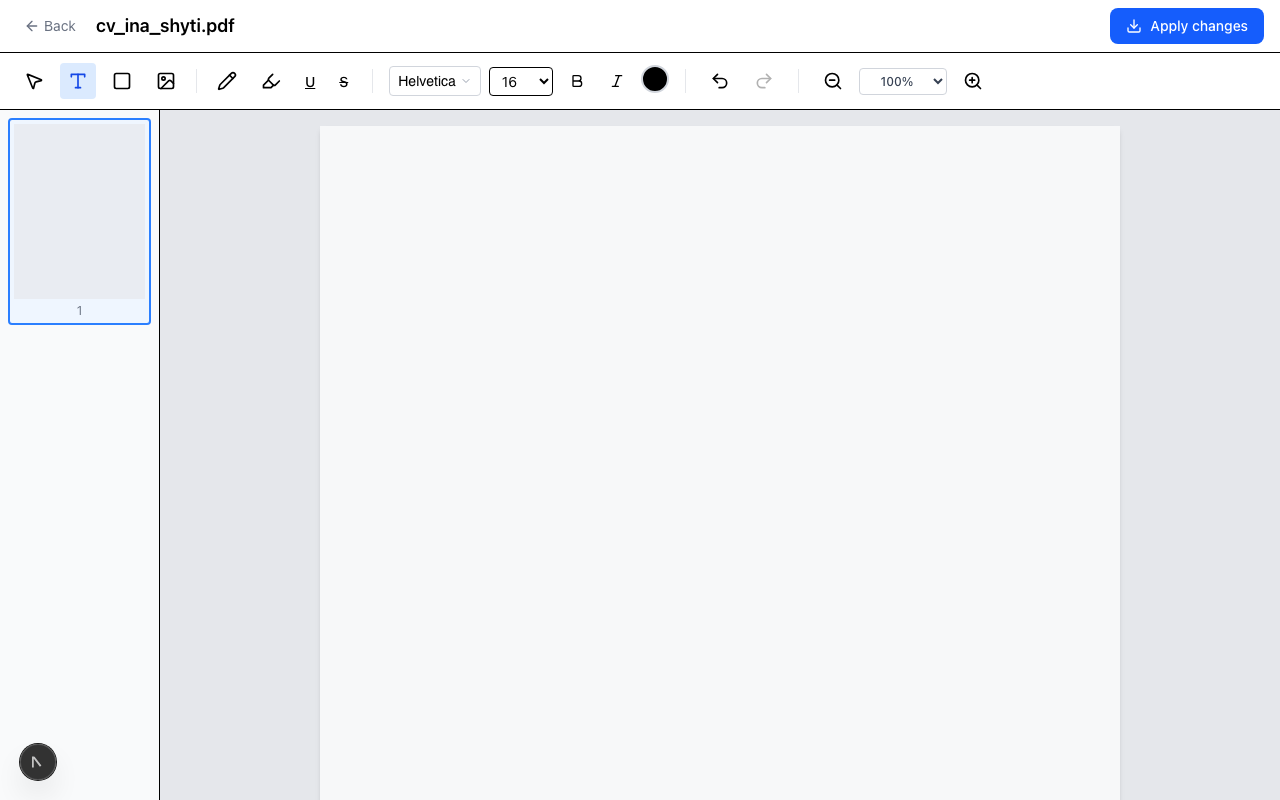
In the toolbar at the top of the editor, click the Text tool (the "T" icon). Your cursor changes to indicate you are in text-placement mode.
Step 3: Click to Place a Text Box
Click anywhere on the PDF page where you want to add text. A text box appears at that position. You can start typing immediately.
The text box is positioned at the exact point where you clicked. If you want to move it afterward, you can drag it to a new location. To resize it, drag the corners.
Step 4: Choose Your Font, Size, and Color
With the text box selected, the toolbar shows formatting options: font family, font size, and text color.
RedaktPDF supports 33 fonts — a mix of serif, sans-serif, monospace, and display typefaces. For most documents, the default sans-serif font looks clean and professional. If you are matching existing text in the document, try matching the weight and style visually. For a signature-style text insertion, a script font gives a more authentic appearance.
Font sizes run from small caption sizes up to large display sizes. For form fill-ins, 10–12pt usually matches typical form body text. For labels on diagrams, 8–9pt is often appropriate. For a prominent stamp like "DRAFT," 36pt or larger gets attention.
Text color defaults to black. Use the color picker to set a different color — red for revision marks, blue for annotations, grey for light watermarks.
Step 5: Position and Finalize
After typing, click elsewhere on the page to deselect the text box. The text is now part of your edit layer — visible on the page but not yet burned into the PDF.
If you need to adjust the position, click the text box to reselect it and drag. If you want to edit the text content, double-click the box.
Step 6: Export Your PDF
When you are happy with all your edits, click Download in the toolbar. RedaktPDF exports a new PDF file with your text layer embedded. The result is a standard PDF that opens correctly in any viewer — Acrobat, Preview, Chrome, or a mobile PDF app.
Tips for Clean Results
Match the existing font. The most professional-looking text additions blend with the existing document. Open the original document, note what font and size appear to be used for body text, and match those settings in your text box.
Use the zoom controls. For precise placement — especially on forms with small fields — zoom in before placing your text box. It is much easier to position accurately at 150% zoom than at the default view.
Use whiteout to fix mistakes. If you place a text box in the wrong spot and the existing document content shows through, use the whiteout tool to cover it first, then place your text on top. This is particularly useful when correcting typos in the original document.
Keep signature text short. If you are typing your name as a casual signature, keep it to one line. A script font at 16–18pt for a first and last name usually reads naturally as a signature in most document contexts.
Check the final export. Before sending the document, open the exported PDF in a viewer and scroll through. Verify that your text additions appear at the correct size and position. Occasionally a font renders slightly differently between the editor preview and the final export — a quick review catches this before it matters.
What Requires a More Powerful Tool
Adding text boxes works well for the cases described above. There are situations where you need something more:
Editing existing body text. True reflow editing — where you change a word in the middle of a paragraph and the rest of the text adjusts around it — is a different operation. That requires PDF editing software that understands the document's text streams. RedaktPDF adds new text on top; it does not reflow existing text.
Scanned documents. If the PDF is a scan, there is no text layer — it is an image. To add text that aligns with the scanned content, you would first need OCR to convert the scan to actual text, then edit.
Multi-page form fill. For a 20-page form with dozens of fields to fill, a dedicated PDF form tool is more efficient. Text box placement is fine for a page or two but becomes tedious at scale.
For everything else — forms with a few fields, labels, notes, signature lines, draft stamps — the browser-based approach is the most practical choice. No installation, no subscription, and your document stays private.
Getting Started
The add text to PDF tool is ready to use without creating an account. Upload your file, make your edits, and download the result. For documents with sensitive content, RedaktPDF's automatic file deletion means nothing persists on the server after your session ends.
If your needs go beyond text additions — you also need to annotate, rearrange pages, or redact content — all of those tools are available in the same online PDF editor. You can combine multiple operations in a single session and export once.
Ready to try RedaktPDF?
Edit, redact, and annotate PDFs directly in your browser — free and encrypted.
Get startedRelated tools
Add Text to PDF
Add text to any PDF page online free. Choose from 33 fonts, set size and color, position precisely. Works on scanned and digital PDFs. No installation needed.
Edit PDF
Edit PDF files online free — add text, images, and annotations. Browser-based, no installation. Your file stays private and is deleted after 2 hours.