Whether you need to insert a company logo onto a contract, add a photo to a report, or place a scanned signature on an agreement, adding an image to a PDF is a task that comes up constantly. The problem is that most people either don't know how to do it without expensive software, or they waste time printing, signing by hand, and scanning back in.
With RedaktPDF's image tool, the process takes about thirty seconds: upload your PDF, insert the image, position it, and download. No installation required.
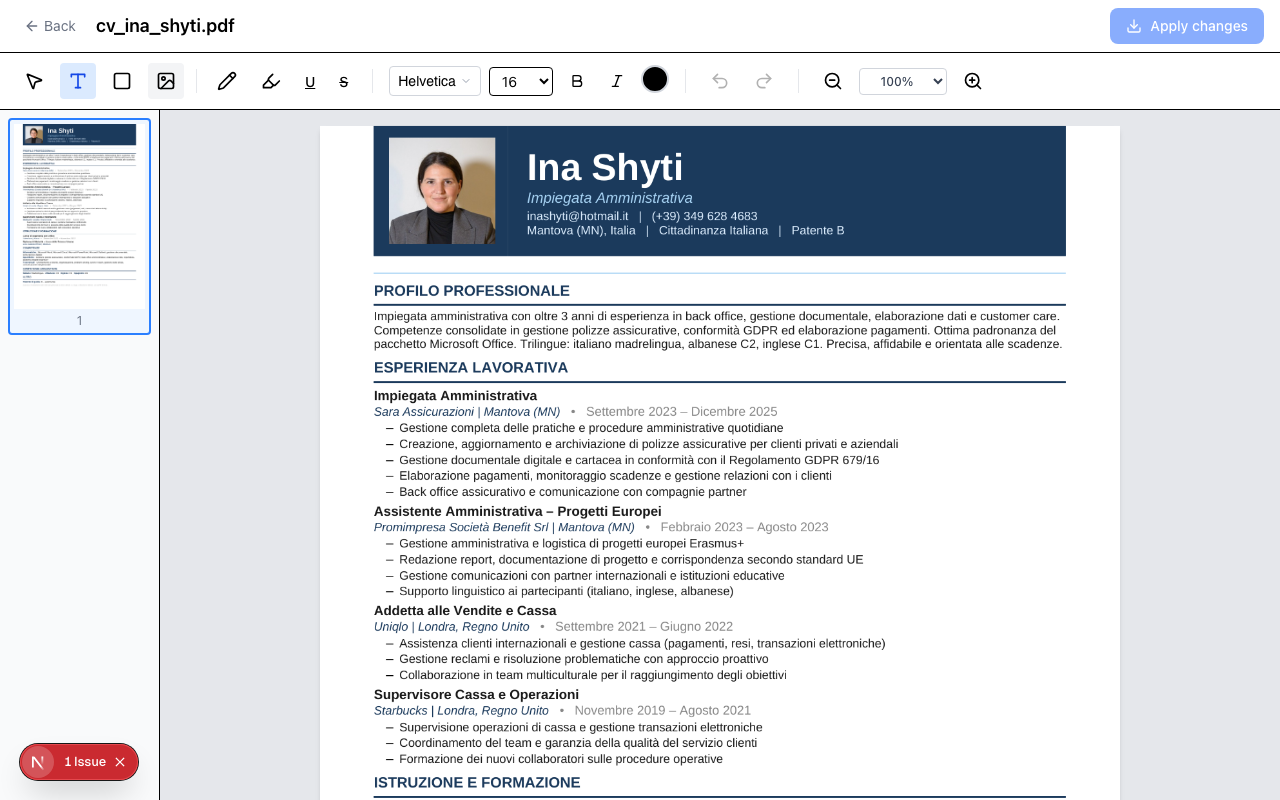
Common Use Cases for Adding Images to PDFs
Understanding why people add images to PDFs helps clarify what you actually need from a tool.
Signatures. This is the most common case. You sign a piece of paper, photograph or scan it, and insert the signature image into the appropriate location in the PDF. Alternatively, you draw your signature on a tablet or phone and save it as a PNG with a transparent background — which looks far cleaner when placed on the document. A signature PNG with a transparent background means the document content shows through, making the signature look natural rather than sitting in a white box.
Logos and branding. When preparing contracts, invoices, or proposals as PDFs, you often need to add your company logo to a header or footer. Adding a PNG or JPG directly into the PDF gives you precise placement control.
Photos in reports and documentation. Technical reports, inspection forms, and case files often need photographic evidence. Adding the relevant photos directly into the PDF keeps everything in one file rather than an attached folder.
Stamps and seals. Some documents require a stamp — "Received," "Approved," "Confidential." A PNG stamp image placed on the appropriate page serves the same visual function as a physical stamp.
Watermarks. A partially transparent image watermark ("DRAFT," a logo, or a diagonal text) can be placed on each page to mark a document status before circulation.
How to Add an Image to a PDF with RedaktPDF
Step 1: Prepare Your Image
Before uploading the PDF, make sure your image is ready.
For signatures: a PNG with a transparent background looks best. If you scanned a handwritten signature on paper, you can remove the white background using any basic image editor. Save as PNG to preserve transparency.
For logos: use a high-resolution PNG or JPG. Avoid low-resolution screenshots — they look blurry when printed or viewed closely.
For photos: JPG is fine for photographs. Resize the image to an approximate size before inserting if the file is very large (over a few megabytes) — this keeps the final PDF file size reasonable.
Step 2: Upload Your PDF
Go to RedaktPDF and drag your PDF onto the upload area, or click to browse. The document loads in the editor. No account is required, and your file is automatically deleted after your session ends.
Step 3: Select the Image Tool
In the toolbar, click the Image tool (the picture icon). A file picker appears.
Step 4: Select and Insert Your Image
Use the file picker to select the image from your device. It appears on the PDF page at a default size and position.
Step 5: Position and Resize
Click and drag the image to place it exactly where you need it. Drag the corner handles to resize.
For a signature, position it carefully over the signature line. If you are working with a multi-page document, navigate to the correct page before placing the image — each page operates independently.
For a logo in a header, position it in the upper portion of the page where it won't obscure existing content.
Step 6: Export
Click Download in the toolbar. RedaktPDF exports a PDF with the image embedded. Open the exported file to verify the placement before sharing.
Adding a Signature: Step-by-Step
Signing a PDF electronically is the most requested form of image insertion, so it deserves specific treatment.
Option A: Scan or photograph a handwritten signature. Sign on white paper using a dark pen. Photograph with your phone in good lighting, or scan at 200 DPI or higher. Crop to just the signature. If possible, remove the white background in an image editor (or use an online background remover) and save as PNG. Insert into the signature line area of the PDF.
Option B: Create a digital signature using a stylus. On a tablet or phone, use any drawing app to write your signature against a white or transparent canvas. Export as PNG. Transfer to your computer. Insert into the PDF.
Option C: Type your name in a signature-style font. If a casual typographic signature is sufficient (it is for many internal documents and informal agreements), use the text tool in RedaktPDF and select a script font. This avoids image handling entirely and can look surprisingly natural for shorter names.
What makes a signature look clean on a PDF:
- Transparent background (PNG) — the document shows through, not a white box
- Correct scale — a signature that fills the entire signature line looks unnatural; aim for 60–70% of the available width
- Correct vertical position — centered vertically within the line, not floating above it
Tips for Image Placement
Use zoom for precision. Navigating to 150% or 200% zoom before positioning an image makes it much easier to land exactly where you want it, especially in tight areas like signature lines or small form fields.
Layer order matters. Images sit on top of the existing PDF content by default. If you are placing something that should appear behind existing text (unusual, but it happens with watermarks), that will require a different approach.
Check the exported file size. If you are inserting large photographs into multiple pages, the exported PDF can become large. For most purposes — contracts, invoices, internal documents — this is not an issue. If you are distributing widely and file size matters, compress your source images before inserting.
Multiple images on one page. You can insert more than one image on a page. Each placement is independent. Use this to add both a signature and a date stamp image, or a logo and a seal, in a single session.
Test on a copy first. If you are unsure about placement and the document is important, work on a copy first. Once you are happy with the layout, redo the process on the final file.
What This Tool Does Not Do
Image insertion handles the visual addition of raster images (PNG, JPG) to PDF pages. There are adjacent tasks it does not cover:
Editing existing images. You can add new images but not modify images that are already embedded in the original PDF.
SVG or vector graphics. RedaktPDF works with raster image formats. If you have a vector logo in SVG format, convert it to PNG first at a high resolution.
Page-spanning images. Each image is placed on a single page. If you need an image that spans two pages (unusual in practice), you would need to split it into two image files.
For the vast majority of use cases — signatures, logos, photos, stamps — the browser-based approach covers everything you need.
Getting Started
The add image to PDF tool works without creating an account. Upload your file, insert your image, adjust the placement, and download. Files are automatically deleted after your session, so sensitive documents remain private.
If you also need to add text, annotate, or rearrange pages in the same document, those tools are all available in the online PDF editor. You can combine as many operations as needed in a single editing session before exporting.
Ready to try RedaktPDF?
Edit, redact, and annotate PDFs directly in your browser — free and encrypted.
Get startedRelated tools
Add Image to PDF
Insert PNG, JPEG, or WebP images into any PDF page online free. Drag to position and resize. Perfect for signatures, logos, and photos. No account required.
Edit PDF
Edit PDF files online free — add text, images, and annotations. Browser-based, no installation. Your file stays private and is deleted after 2 hours.